Recursively Scanning a Path with Filters under Python

Python has a great function to walk a tree called os.walk(). It’s a simple generator (meaning that you just enumerate it), and, at each node (a specific child path) it gives you 1) the current path, 2) a list of child directories, and 3) a list of child files. You can even use it in such a way that you can adjust what child directories it will walk on-the-fly. However, it doesn’t take any filters. What if you just want to give it inclusion/exclusion rules and then see the matching results?

Enter pathscan. This library will silently start a background-worker (as a process) to scan the directory structure in parallel while forwarding results to the foreground. To install, just install the pathscan library. It requires Python 3.4.

The library runs as a generator:

import fss.constants
import fss.config.log
import fss.orchestrator

root_path = '/etc'

filter_rules = [
    (fss.constants.FT_DIR, fss.constants.FILTER_INCLUDE, 'init'),
    (fss.constants.FT_FILE, fss.constants.FILTER_INCLUDE, 'net*'),
    (fss.constants.FT_FILE, fss.constants.FILTER_EXCLUDE, 'networking.conf'),
]

o = fss.orchestrator.Orchestrator(root_path, filter_rules)
for (entry_type, entry_filepath) in o.recurse():
    if entry_type == fss.constants.FT_DIR:
        print("Directory: [%s]" % (entry_filepath,))
    else: # entry_type == fss.constants.FT_FILE:
        print("File: [%s]" % (entry_filepath,))

# Directory: [/etc/init]
# File: [/etc/networks]
# File: [/etc/netconfig]
# File: [/etc/init/network-interface-container.conf]
# File: [/etc/init/networking.conf]
# File: [/etc/init/network-interface-security.conf]
# File: [/etc/init/network-interface.conf]

A command-line tool is also included:

$ pathscan -i "i*.h" -id php /usr/include 
F /usr/include/iconv.h
F /usr/include/ifaddrs.h
F /usr/include/inttypes.h
F /usr/include/iso646.h
D /usr/include/php
Unix Signals and Their Integers

I always find that this information is too far buried in the include files or requires too many Google searches. So, they’re now printed here both for your convenience and mine. No doubt that some of them may not be standard on all Unixes, but the first nine are generally the only ones that are relevant.

Name Integer
SIGHUP 1
SIGINT 2
SIGQUIT 3
SIGILL 4
SIGTRAP 5
SIGABRT 6
SIGFPE 8
SIGKILL 9
SIGBUS 10
SIGSEGV 11
SIGSYS 12
SIGPIPE 13
SIGALRM 14
SIGTERM 15
SIGUSR1 16
SIGUSR2 17
SIGCHLD 18
SIGTSTP 20
SIGURG 21
SIGPOLL 22
SIGSTOP 23
SIGCONT 25
SIGTTIN 26
SIGTTOU 27
SIGVTALRM 28
SIGPROF 29
SIGXCPU 30
SIGXFSZ 31

Creating a Case-Sensitive Partition in OSX

I work inside of Vagrant on my Mac system. I only just ran into a case-sensitivity problem that led to the wrong libraries being included. For, even though I’m running in an Ubuntu instance, it’s still subject to the rules of the filesystem that it’s only just sharing off the host system. So, the time has come to fix this annoying little trait of my Mac environment.

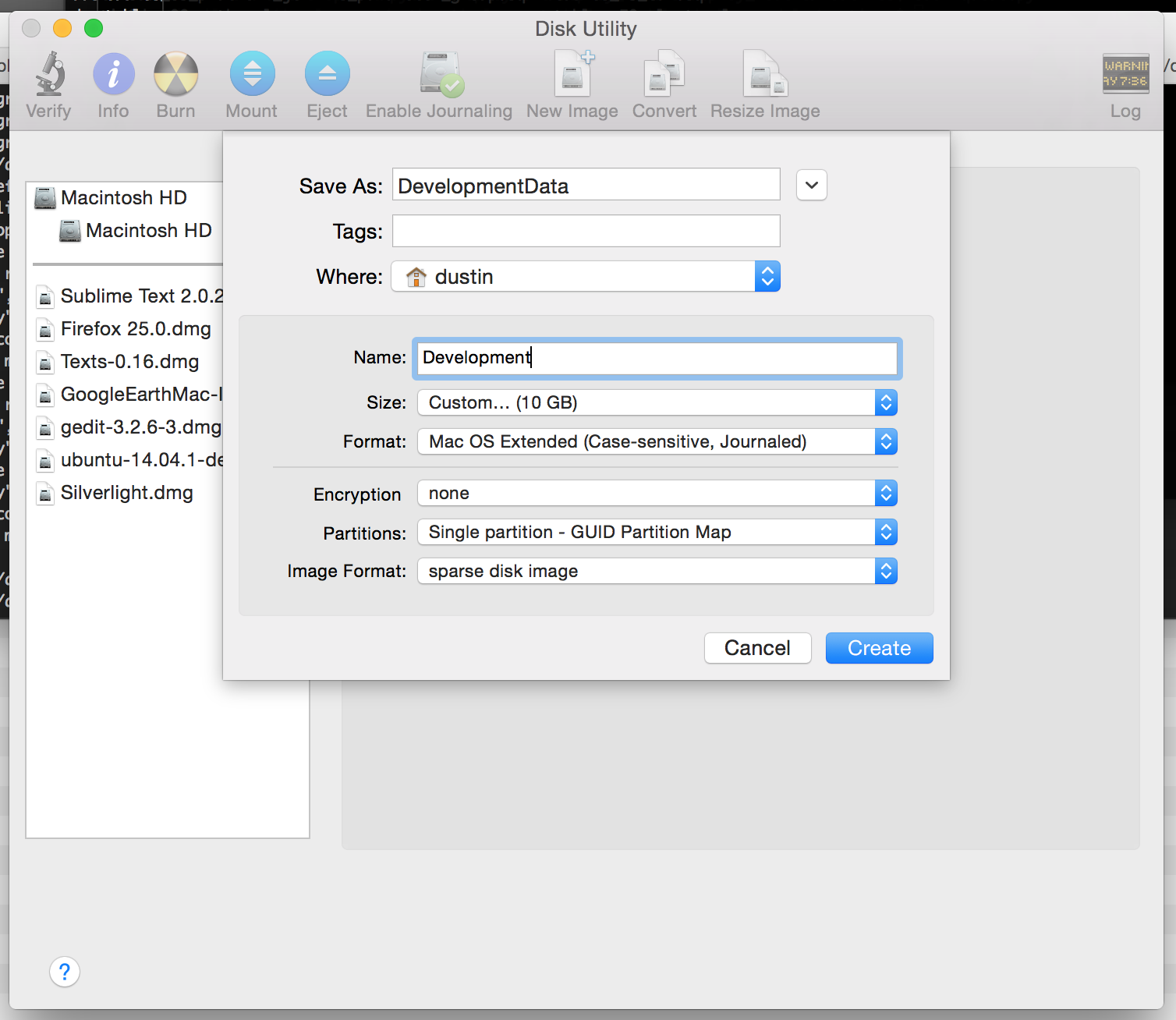
Go to Disk Utility and create an image. Make sure you select a case-sensitive format (e.g. “Mac OS Extended (Case-sensitive, Journaled)”):

Creating a Case-Sensitive Image in Disk Utility

Notice that I chose “sparse disk image” for “Image Format”. This starts with a minimally-sized container that’ll grow as I populate it with data, rather than starting off at the requested size.

Since you’re probably going to want to mount this image on a particular folder, unmount it using Disk Utility or Finder (since it would’ve automatically been mounted after you created it). Then, go to the command-line and mount it where ever you’d like:

$ hdiutil attach -mountpoint ~/development DevelopmentData.sparseimage

After that, the sky is the limit. Naturally, consider using “rsync -a” if you have to copy existing files there.

Scriptable C++

What if C++ were a scripting language that you could eval from your native C++?

ChaiScript: http://chaiscript.com

Example (from the homepage):

#include <chaiscript/chaiscript.hpp>

std::string helloWorld(const std::string &t_name)
{
  return "Hello " + t_name + "!";
}

int main()
{
  chaiscript::ChaiScript chai;
  chai.add(chaiscript::fun(&helloWorld), 
           "helloWorld");

  chai.eval("puts(helloWorld("Bob"));");
}

Python: Recursive defaultdict

collections.defaultdict is a fun utility that is used to create an indexable collection that will implicitly create an entry if a key is read that doesn’t yet exist. The value to be used will be instantiated using the type passed.

Example:

import collections

c = collections.defaultdict(str)
c['missing_key']
print(dict(c))
#{'missing_key': ''}

What if you want to create a dictionary that recursively and implicitly creates dictionary-type members as far down as you’d like to go? Well, it turns out that you can also pass a factory-function as the argument to collections.defaultdict:

import collections

def dict_maker():
    return collections.defaultdict(dict_maker)

x = dict_maker()
x['a']['b']['c'] = 55
print(x)
#defaultdict(<function dict_maker at 0x10e1dbed8>, {'a': defaultdict(<function dict_maker at 0x10e1dbed8>, {'b': defaultdict(<function dict_maker at 0x10e1dbed8>, {'c': 55})})})

To make the result a little nicer:

import json

print(json.dumps(x))
#{"a": {"b": {"c": 55}}}

Subversion from Python

Generally, it’s preferable to bind to libraries rather than executables when given the option. In my case, I needed SVN access from Python and couldn’t, at that time, find a confidence-inspiring library to work with. So, I wrote svn.

It turns out that there is a Subversion-sponsored Python project. It looks to be SWIG-based.

This comes from the python-svn Apt package under Ubuntu.

The Programmer’s Guide has the following examples, among others:

cat:

import pysvn
client = pysvn.Client()
file_content = client.cat('file.txt')

ls:

import pysvn
client = pysvn.Client()
entry_list = client.ls('.')

info:

import pysvn
client = pysvn.Client()
entry = client.info('.')

Using inotify to watch for directory changes from Python

An inotify project is now available on PyPI. More documentation is available at the project homepage: PyInotify

Though the inotify functionality is uncomplicated to implement in C, it’s stupidly simple to implement in Python using this library.

To install:

$ sudo pip install inotify

This is the principal logic of the example provided in the project documentation:

i = inotify.adapters.Inotify()

i.add_watch('/tmp')

for event in i.event_gen():
    if event is not None:
        (header, type_names, watch_path, filename) = event

        _LOGGER.info("WD=(%d) MASK=(%d) COOKIE=(%d) LEN=(%d) MASK->NAMES=%s "
                     "WATCH-PATH=[%s] FILENAME=[%s]", 
                     header.wd, header.mask, header.cookie, header.len, type_names, 
                     watch_path, filename)

We ran the following operations on /tmp:

$ touch /tmp/aa
$ rm /tmp/aa
$ mkdir /tmp/dir1
$ rmdir /tmp/dir1

This was the corresponding output of the inotify process:

2015-04-24 05:02:06,667 - __main__ - INFO - WD=(1) MASK=(256) COOKIE=(0) LEN=(16) MASK->NAMES=['IN_CREATE'] FILENAME=[aa]
2015-04-24 05:02:06,667 - __main__ - INFO - WD=(1) MASK=(32) COOKIE=(0) LEN=(16) MASK->NAMES=['IN_OPEN'] FILENAME=[aa]
2015-04-24 05:02:06,667 - __main__ - INFO - WD=(1) MASK=(4) COOKIE=(0) LEN=(16) MASK->NAMES=['IN_ATTRIB'] FILENAME=[aa]
2015-04-24 05:02:06,667 - __main__ - INFO - WD=(1) MASK=(8) COOKIE=(0) LEN=(16) MASK->NAMES=['IN_CLOSE_WRITE'] FILENAME=[aa]
2015-04-24 05:02:17,412 - __main__ - INFO - WD=(1) MASK=(512) COOKIE=(0) LEN=(16) MASK->NAMES=['IN_DELETE'] FILENAME=[aa]
2015-04-24 05:02:22,884 - __main__ - INFO - WD=(1) MASK=(1073742080) COOKIE=(0) LEN=(16) MASK->NAMES=['IN_ISDIR', 'IN_CREATE'] FILENAME=[dir1]
2015-04-24 05:02:25,948 - __main__ - INFO - WD=(1) MASK=(1073742336) COOKIE=(0) LEN=(16) MASK->NAMES=['IN_ISDIR', 'IN_DELETE'] FILENAME=[dir1]

Lastly, this library also provides the ability to recursively watch a given directory. Just use the inotify.adapters.InotifyTree class instead of inotify.adapters.Inotify, and pass a path.

World’s Simplest Python epoll Example For Waiting on File/Socket Readiness

Once upon a time, the only way to wait to read or write on one or more sockets/descriptors in Linux was the select method, which was later superseded by poll, and then epoll. epoll is the most current and popular way to accomplish this, now. Note that this is only available for Linux, and not for Mac (though select and poll appear to be).

In Python, you can invoke this functionality in the built-in select package. You can use it on any standard system file-descriptor, whether it’s socket-oriented, inotify-related, etc.

import logging
import sys
import socket
import select

_MAX_CONNECTION_BACKLOG = 1
_PORT = 9999
_BINDING = ('0.0.0.0', _PORT)
_EPOLL_BLOCK_DURATION_S = 1

_DEFAULT_LOG_FORMAT = '%(asctime)s - %(name)s - %(levelname)s - %(message)s'

_LOGGER = logging.getLogger(__name__)

_CONNECTIONS = {}

_EVENT_LOOKUP = {
    select.POLLIN: 'POLLIN',
    select.POLLPRI: 'POLLPRI',
    select.POLLOUT: 'POLLOUT',
    select.POLLERR: 'POLLERR',
    select.POLLHUP: 'POLLHUP',
    select.POLLNVAL: 'POLLNVAL',
}

def _configure_logging():
    _LOGGER.setLevel(logging.DEBUG)

    ch = logging.StreamHandler()

    formatter = logging.Formatter(_DEFAULT_LOG_FORMAT)
    ch.setFormatter(formatter)

    _LOGGER.addHandler(ch)

def _get_flag_names(flags):
    names = []
    for bit, name in _EVENT_LOOKUP.items():
        if flags & bit:
            names.append(name)
            flags -= bit

            if flags == 0:
                break

    assert flags == 0, 
           "We couldn't account for all flags: (%d)" % (flags,)

    return names

def _handle_inotify_event(epoll, server, fd, event_type):
    # Common, but we're not interested.
    if (event_type & select.POLLOUT) == 0:
        flag_list = _get_flag_names(event_type)
        _LOGGER.debug("Received (%d): %s", 
                      fd, flag_list)

    # Activity on the master socket means a new connection.
    if fd == server.fileno():
        _LOGGER.debug("Received connection: (%d)", event_type)

        c, address = server.accept()
        c.setblocking(0)

        child_fd = c.fileno()

        # Start watching the new connection.
        epoll.register(child_fd)

        _CONNECTIONS[child_fd] = c
    else:
        c = _CONNECTIONS[fd]

        # Child connection can read.
        if event_type & select.EPOLLIN:
            b = c.recv(1024)
            sys.stdout.write(b)

def _create_server_socket():
    s = socket.socket(socket.AF_INET, socket.SOCK_STREAM)
    s.setsockopt(socket.SOL_SOCKET, socket.SO_REUSEADDR, 1)
    s.bind(_BINDING)
    s.listen(_MAX_CONNECTION_BACKLOG)
    s.setblocking(0)

    return s

def _run_server():
    s = _create_server_socket()

    e = select.epoll()

    # If not provided, event-mask defaults to (POLLIN | POLLPRI | POLLOUT). It 
    # can be modified later with modify().
    e.register(s.fileno())

    try:
        while True:
            events = e.poll(_EPOLL_BLOCK_DURATION_S)
            for fd, event_type in events:
                _handle_inotify_event(e, s, fd, event_type)
    finally:
        e.unregister(s.fileno())
        e.close()
        s.close()

if __name__ == '__main__':
    _configure_logging()
    _run_server()

Now, just connect via telnet to port 9999 on localhost. Submitted text in the client will be printed to the screen on the server:

$ python epoll.py 
2015-04-23 08:34:35,104 - __main__ - DEBUG - Received (3): ['POLLIN']
2015-04-23 08:34:35,104 - __main__ - DEBUG - Received connection: (1)
hello

Issues between Vagrant/VirtualBox and your Webserver

It turns out that there could be issues when you’re changing files on your local system and using them from a VirtualBox VM. This can/will you if you’re working with small, static files under Vagrant when using VirtualBox as a provider.

You might make changes that result in unexpected, non-sensical, character-encoding issues on the remote system or even any lack of any updates appearing whatsoever. For me, this affected my JavaScript and CSS files.

To fix this, add “sendfile off;” to the location-blocks (if using Nginx) that are responsible for your static files.

Reference: http://docs.vagrantup.com/v2/synced-folders/virtualbox.html

Brew: Getting the install path of a package

Easy and simple, and recorded here for quick recollection:

$ brew --prefix openssl
/usr/local/opt/openssl

This is a symlink to the path in Cellar:

$ ls -l `brew --prefix openssl`
lrwxr-xr-x  1 dustin  staff  26 Apr 14 20:25 /usr/local/opt/openssl -> ../Cellar/openssl/1.0.2a-1