
Split a Media File by a List of Time Offsets
We’ll split a single audio file containing the whole Quake soundtrack using SplitMedia.
The list file:
0:00:00 Quake Theme
0:05:08 Aftermath
0:07:34 The Hall of Souls
...
1:08:21 Scourge of Armagon 4
1:11:34 Scourge of Armagon 5
...
1:39:57 Dissolution of Eternity 6
1:43:01 Dissolution of Eternity 7
1:46:07 Dissolution of Eternity 8
The command:
$ splitmedia Quake\ Soundtrack.m4a list_file.quake quake_output
OFF 000:00:00.000 DUR 000308.000 01_QuakeTheme.m4a
OFF 000:05:08.000 DUR 000146.000 02_Aftermath.m4a
OFF 000:07:34.000 DUR 000500.000 03_TheHallofSouls.m4a
...
OFF 001:08:21.000 DUR 000193.000 14_ScourgeofArmagon4.m4a
OFF 001:11:34.000 DUR 000193.000 15_ScourgeofArmagon5.m4a
...
OFF 001:39:57.000 DUR 000184.000 24_DissolutionofEternity6.m4a
OFF 001:43:01.000 DUR 000186.000 25_DissolutionofEternity7.m4a
OFF 001:46:07.000 DUR 000000.000 26_DissolutionofEternity8.m4a
Calculating a Hash for a Path (Recursively)
PathFingerprint allows you to recursively generate hashes for a directory structure. While doing this, it builds a catalog in a separate directory to serve as a cache. Subsequent runs of large directories will run much quicker. You can also do simple lookups against an existing catalog and generate/print a report of what has changed since the last run.
Build a test directory:
$ mkdir -p scan_path/subdir1
$ mkdir -p scan_path/subdir2
$ touch scan_path/subdir1/aa
$ touch scan_path/subdir1/bb
Calculate the hash (with reporting enabled):
$ pfhash -s scan_path -c catalog_path -R -
create file subdir1/aa
create file subdir1/bb
create path subdir1
create path subdir2
create path .
0df9bc5a7657b7d481c219656441f10d21fd5668
Run again with a couple of changes (with reporting enabled):
$ touch scan_path/subdir1/aa
$ touch scan_path/subdir2/new_file

$ pfhash -s scan_path -c catalog_path -R -
update file subdir1/aa
create file subdir2/new_file
update path subdir2
update path .
e700843c1b5c2f40a68098e1df96ef08b6081fe8
Lookup the hash using the lookup tool:
$ pflookup -c catalog_path
e700843c1b5c2f40a68098e1df96ef08b6081fe8

$ pflookup -c catalog_path -r subdir1
426a98d313a0a740b8445daa5102b3ed6dd7f4ed

$ pflookup -c catalog_path -r subdir1/aa
da39a3ee5e6b4b0d3255bfef95601890afd80709
Creating an Installable Boot Disk for OSX
Courtesy of Apple:
The Numb-Nuts Tutorial to the Celery Distributed Task Queue (using Python)
Celery is a distributed queue that is very easy to pick-up. I’ll do two quick examples: one that sends a job and returns and another that sends a job and then retrieves a result. I’m going to use SQLite for this example (which is interfaced via SQLAlchemy). Since Celery seems to have some issues importing SQLite under Python 3, we’ll use Python 2.7 . Make sure that you install the “celery” and “sqlalchemy” Python packages.
Without Results
Define the tasks module and save it as sqlite_queue_without_results.py:
import celery

_BACKEND_URI = 'sqla+sqlite:///tasks.sqlite'
_APP = celery.Celery('sqlite_queue_without_results', broker=_BACKEND_URI)

@_APP.task
def some_task(incoming_message):
    return "ECHO: {0}".format(incoming_message)
Start the server:
$ celery -A sqlite_queue_without_results worker --loglevel=info
Execute the following Python to submit a job:
import sqlite_queue_without_results

_ARG1 = "Test message"
sqlite_queue_without_results.some_task.delay(_ARG1)
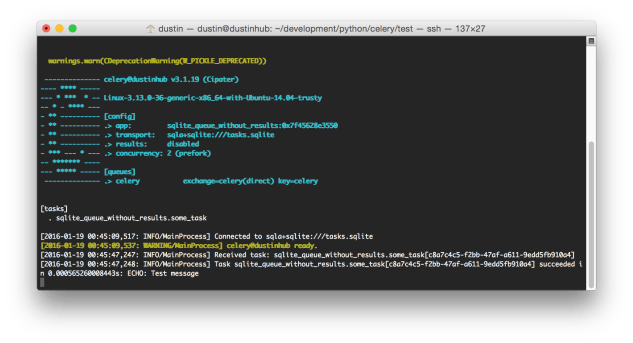
That’s it. You’ll see something similar to the following in the server window:
With Results
This time, when we define the tasks module, we’ll provide Celery a results backend. Call this module sqlite_queue_with_results.py:
import celery

_RESULT_URI = 'db+sqlite:///results.sqlite'
_BACKEND_URI = 'sqla+sqlite:///tasks.sqlite'

_APP = celery.Celery('sqlite_queue_with_results', broker=_BACKEND_URI, backend=_RESULT_URI)

@_APP.task
def some_task(incoming_message):
    return "ECHO: {0}".format(incoming_message)
Start the server:
$ celery -A sqlite_queue_with_results worker --loglevel=info
Execute the following Python to submit a job:
import sqlite_queue_with_results

_ARG1 = "Test message"
r = sqlite_queue_with_results.some_task.delay(_ARG1)
value = r.get(timeout=2)

print("Result: [{0}]".format(value))
Since we’re using a traditional DBMS (albeit a fast, local one) to store our results, we’ll be internally polling for a state change and then fetching the result. Therefore, it is a more costly operation and I’ve used a two-second timeout to accommodate this.
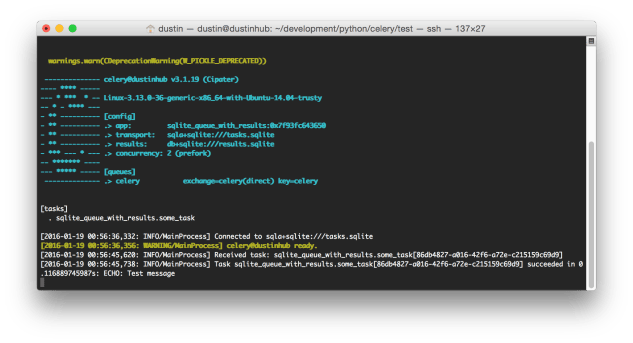
The server output will be similar to the following:
The client output will look like:
Result: [ECHO: Test message]
Celery has many more features not explored by this tutorial, including:
- exception propagation
- custom task states (including providing metadata that can be read by the client)
- task ignore/reject/retry responses
- HTTP-based tasks (for calling your tasks in another place or language)
- task routing
- periodic/scheduled tasks
- workflows
- drawing visible graphs in order to inspect behavior
For more information, see the user guide.
Javascript-Based Operating System
Write your own application suite in a JS-based virtual OS.
I love the URL.
FYI, you can even play the Javascript-version of Wolfenstein in it:
Elon Musk and the Funniest Article Ever
Courtesy of Wait But Why:
Create a Video From Your Processing Sketch (Using the IDE)
A quick example to show how to create a video from Processing 2.0 . Here, I’m using the Python mode. We write each frame out to a file and then use the built-in Movie Maker to create a QuickTime video (you can also attach audio if you desire).
Example code:
def setup():
    size(500, 500)
    fill(0)

def draw():
    background(255, 255, 255)

    if mousePressed:
        ellipse(mouseX, mouseY, 80, 80)

    saveFrame("frames/frame-#####.png")
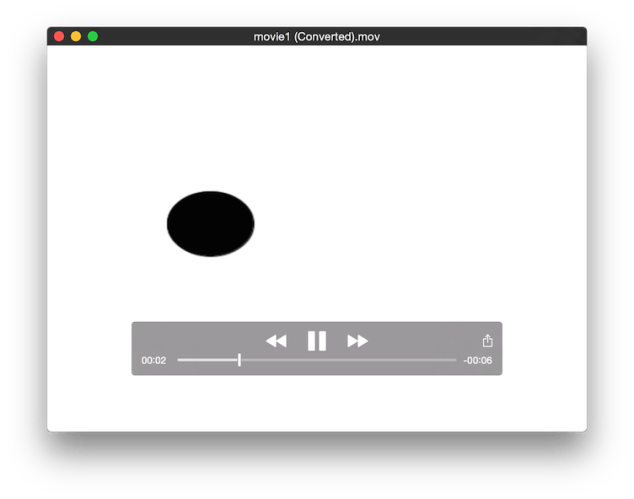
For those that aren’t familiar, this just configures the canvas and then constantly clears the canvas with each redraw. If you’re pressing the mouse-button, it’ll draw a circle whereever the cursor is. After the redraw, it’ll capture one PNG image. It’ll implicitly create the “frames” folder if it doesn’t already exist.
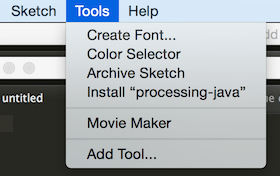
Now, we open Movie Maker:
Click on the top “Choose…” button to elect your “frames” directory (or whatever you called it):
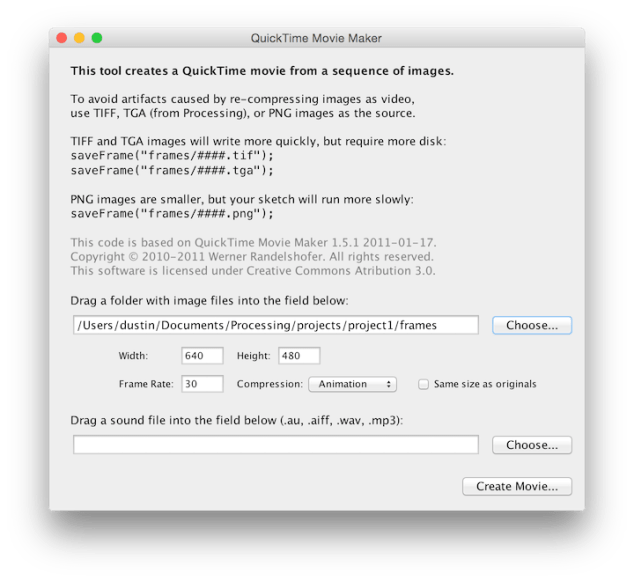
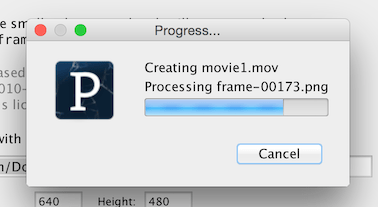
Click “Create Movie…”, select your video-file name/path, and watch it go:
The final result (in my case):
For a library-based approach, look into GSVideo.
Drawing to a Video Using OpenCV and Python
I ran into a considerable amount of difficulty writing a video-file using OpenCV (under Python). Almost every video-writing example on the Internet is only concerned with capturing from a webcam, and, even for the relevant examples, I kept getting an empty/insubstantial file.
In order to write a video-file, you need to declare the FOURCC code that you require. I prefer H.264, so I [unsuccessfully] gave it “H264”. I also heard somewhere that since H.264 is actually the standard, I needed to use “X264” to refer to the codec. This didn’t work either. I also tried “XVID” and “DIVX”. I eventually resorted to trying to pass (-1), as this will allegedly prompt you to make a choice (thereby showing you what options are available). Naturally, no prompt was given and yet it still seemed to execute to the end. There doesn’t appear to be a way to show the available codecs. I was out of options.
It turns out that you still have one or more raw-format codecs available. For example, “8BPS” and “IYUV” are available. MJPEG (“MJPG”) also ended-up working, too. This is the best option (so that we can get compression).
It’s important to note that the nicer codecs might’ve not been available simply due to dependencies. At one point, I reinstalled OpenCV (using Brew) with the “–with-ffmpeg” option. This seemed to pull-down XVID and other codecs. However, I still had the same problems. Note that, since this was installed at the time that I tested “MJPG”, the latter may actually require the former.
Code, using MJPEG:
import cv2
import cv
import numpy as np

_CANVAS_WIDTH = 500
_CANVAS_HEIGHT = 500
_COLOR_DEPTH = 3
_CIRCLE_RADIUS = 40
_STROKE_THICKNESS = -1
_VIDEO_FPS = 1

def _make_image(x, y, b, g, r):
    img = np.zeros((_CANVAS_WIDTH, _CANVAS_HEIGHT, _COLOR_DEPTH), np.uint8)
    position = (x, y)
    color = (b, g, r)
    cv2.circle(img, position, _CIRCLE_RADIUS, color, _STROKE_THICKNESS)

    return img

def _make_video(filepath):
    # Works without FFMPEG.
    #fourcc = cv.FOURCC('8', 'B', 'P', 'S')

    # Works, but we don't have a viewer for it.
    #fourcc = cv.CV_FOURCC('i','Y','U', 'V')

    # Works (but might require FFMPEG).
    fourcc = cv.CV_FOURCC('M', 'J', 'P', 'G')

    # Prompt. This never works, though (the prompt never shows).
    #fourcc = -1

    w = cv2.VideoWriter(
            filepath,
            fourcc,
            _VIDEO_FPS,
            (_CANVAS_WIDTH, _CANVAS_HEIGHT))

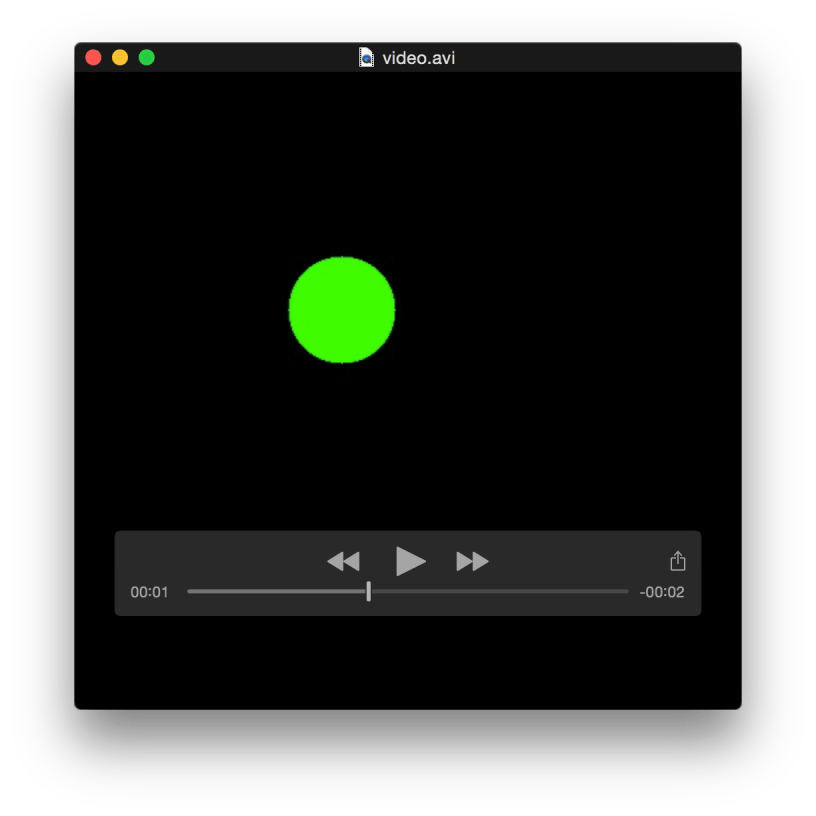
    img = _make_image(100, 100, 0, 0, 255)
    w.write(img)

    img = _make_image(200, 200, 0, 255, 0)
    w.write(img)

    img = _make_image(300, 300, 255, 0, 0)
    w.write(img)

    w.release()

if __name__ == '__main__':
    _make_video('video.avi')


You must be logged in to post a comment.