Programmatically-Driven Websites in Python (with HTTPHandler and SO_LINGER)

We’re going to write a website whose requests are handled by subroutines, and use Python’s logging.handlers.HTTPHandler class to send requests to it. Documentation and/or examples for the former are sparse, and I thought that an example of the latter connecting to the former would be useful.

Understanding the Webserver

Using the built-in BaseHTTPServer.BaseHTTPRequestHandler webserver, you can wire methods for individual verbs (GET, POST, PUT, etc..). Requests on verbs that aren’t handled will return a 501. Aside from having to write the headers at the top of the methods yourself and needing to read a specific quantity of data-bytes (or you’ll block forever), this is similar to every other web-framework that you’ve used.

The only things that you really need to know are the following instance variables:

  • headers: A dictionary-like collection of headers.
  • rfile: A file-like object that will contain your data (if you receive any).
  • wfile: A file-like object that will receive your response data (if you send any).

You’ll also need to deal with how to handle unsent data when you terminate. Even if you shutdown a socket, it may not be closed by the system immediately if data has already moved across it. This relates to why we inherit from SocketServer.TCPServer and change the one class variable. We’ll discuss this more, below.

import pprint
import urlparse

import BaseHTTPServer
import SocketServer

_PORT = 8000


class TCPServerReusableSocket(SocketServer.TCPServer):
    allow_reuse_address = True


class HookedHTTPRequestHandler(BaseHTTPServer.BaseHTTPRequestHandler):
    def __send_headers(self):
        self.send_response(200)
        self.send_header("Content-type", 'text/plain')
        self.end_headers()

    def do_GET(self):
        self.__send_headers()

        print("Received GET request for: %s" % (self.path,))

        self.wfile.write("Test from GET!\n")

    def do_POST(self):
        self.__send_headers()

        print("Received POST request for: %s" % (self.path,))

        print('')
        print('Headers')
        print('=======')
        pprint.pprint(self.headers.items())
        print('=======')

        length = int(self.headers['content-length'])
        data_raw = self.rfile.read(length)
        data = urlparse.parse_qs(data_raw)

        print('')
        print('Received')
        print('========')
        pprint.pprint(data)
        print('========')
        print('')

        self.wfile.write("Test from POST!\n")

httpd = TCPServerReusableSocket(
            ('localhost', _PORT), 
            HookedHTTPRequestHandler)

httpd.serve_forever()

We expect that what we’ve done above is fairly obvious and does not need an explanation. You can implement your own log_request(code=None, size=None) method in HookedHTTPRequestHandler to change how the requests are printed, or to remove them.

To continue our remarks about buffered-data above, we add special handling so that we don’t encounter the “socket.error: [Errno 48] Address already in use” error if you kill the server and restart it a moment later. You may choose one of the following two strategies:

  1. Force the socket to close immediately.
  2. Allow the socket to already be open.

(1) should be fine for logging/etc. However, this might not be a great option if you’re handling actual data. (2) should probably be the preferred strategy, but you’ll also have to be sure to implement a PID file in your application so that you can be sure that only one instance is running (assuming that’s desired).

To implement (2), use SocketServer.TCPServer instead of our custom TCPServerReusableSocket. and, add the following imports:

import socket
import struct

Then, add the following after we define httpd but before we start the server, to tell the SO_LINGER socket option to kill all buffered data immediately:

l_onoff = 1                                                                                                                                                           
l_linger = 0                                                                                                                                                          

httpd.socket.setsockopt(socket.SOL_SOCKET, socket.SO_LINGER, struct.pack('ii', l_onoff, l_linger))

You can test this using cURL, if you can’t wait to setup HTTPHandler:

$ curl -X POST -d abc=def http://localhost:8000
Test from POST!

The webserver process will show:

$ python http_server.py 
127.0.0.1 - - [19/Oct/2014 15:28:47] "POST / HTTP/1.1" 200 -
Received POST request for: /

Headers
=======
[('host', 'localhost:8000'),
 ('content-type', 'application/x-www-form-urlencoded'),
 ('content-length', '7'),
 ('accept', '*/*'),
 ('user-agent', 'curl/7.30.0')]
=======

Received
========
{'abc': ['def']}
========

Understanding logging.handlers.HTTPHandler

My own use-case for this was from a new MapReduce platform (JobX), and I wanted to potentially emit messages to another system if certain tasks were accomplished. I used the built-in webserver that we invoked, above, to see these messages from the development system.

import logging
import logging.handlers

logger = logging.getLogger(__name__)

_TARGET = 'localhost:8000'
_PATH = '/'
_VERB = 'post'

sh = logging.handlers.HTTPHandler(_TARGET, _PATH, method=_VERB)

logger.addHandler(sh)
logger.setLevel(logging.DEBUG)

logger.debug("Test message.")

This will be shown by the webserver:

127.0.0.1 - - [19/Oct/2014 15:45:02] "POST / HTTP/1.0" 200 -
Received POST request for: /

Headers
=======
[('host', 'localhost'),
 ('content-type', 'application/x-www-form-urlencoded'),
 ('content-length', '368')]
=======

Received
========
{'args': ['()'],
 'created': ['1413747902.18'],
 'exc_info': ['None'],
 'exc_text': ['None'],
 'filename': ['push_socket_log.py'],
 'funcName': ['<module>'],
 'levelname': ['DEBUG'],
 'levelno': ['10'],
 'lineno': ['17'],
 'module': ['push_socket_log'],
 'msecs': ['181.387901306'],
 'msg': ['Test message.'],
 'name': ['__main__'],
 'pathname': ['./push_socket_log.py'],
 'process': ['65486'],
 'processName': ['MainProcess'],
 'relativeCreated': ['12.6709938049'],
 'thread': ['140735262810896'],
 'threadName': ['MainThread']}
========

Note that each field is a list with one item. If you want the output to look a little nicer, alter the above to add the following to the top of the module:

import datetime

_FMT_DATETIME_STD = '%Y-%m-%d %H:%M:%S'

Then, add the __print_entry method:

    def __print_entry(self, entry):
        created_epoch = float(entry['created'][0])
        when_dt = datetime.datetime.fromtimestamp(created_epoch)
        timestamp_phrase = when_dt.strftime(_FMT_DATETIME_STD)
        where_name = entry['name'][0][:40]
        level_name = entry['levelname'][0]

        message = entry['msg'][0]

        print('%s  %40s  %9s  %s' % 
              (timestamp_phrase, where_name, level_name, message))

Then, change the last part of do_POST:

    def do_POST(self):
        self.__send_headers()

        length = int(self.headers['content-length'])
        data_raw = self.rfile.read(length)
        data = urlparse.parse_qs(data_raw)

        self.__print_entry(data)

The output will now look like:

2014-10-19 16:16:00       MR_HANDLER.HTTP.map_obfuscation_one       INFO  Socket message!
2014-10-19 16:16:00                           MR_HANDLER.HTTP      ERROR  Mapper invocation [789b7ca7fcb6cede9ae5557b2121d392469dfc26] under request [85394d5bdb34a09ffa045776cc69d1d4cd17d657] failed. HANDLER=[map_obfuscation_one]

There is one weird thing about HTTPHandler, and it’s this: Many/all of the fields will be stringified in order to serialized them. If you call the logger like logging.debug('Received arguments: [%s] [%s]', arg1, arg2), then we’ll receive Received argument: [%s] in the msg field (or rather the msg list), and the arguments as a stringified tuple like (u'abc', u'def'). To avoid dealing with this, I’ll send messages into a function that’s in charge of the notifications, and produce the final string before I send it to the logger.

The same thing applies to tracebacks. If you log an exception, you’ll only get this:

 'exc_info': ['(<type 'exceptions.NameError'>, NameError("global name 'client_id' is not defined",), <traceback object at 0x110c92878>)'],
 'exc_text': ['None'],

Again, you’ll have to concatenate this into the log-message by some intermediate function (so that the primary application logic doesn’t have to know about it, but so that you’ll still get this information).
Intro to Docker, and Private Image Registries

Docker is an application hosting framework. It enables you to wrap virtual-machine containers around your applications and both manufacture and control them via API.

Docker allows you to bundle your dependencies/servers and your application into a thin image that is layered on top of another one (such as Ubuntu, or something more formally prepared for your needs). These are different than virtual machines, in that even though they are heavily isolated from the other processes in the system using LXC and cgroups (Linux concepts talked about in previous articles), they share the same resources and have almost no overhead. When you start a VM, you end up at a prompt or UI that is ready for you to install and start applications. When you start an application container, you run a script that starts your applications and dependencies, and nothing else. You can run a handful of VMs on a system, but a thousand application containers. If you want to streamline distribution, you can then consider using CoreOS to host your images at the OS-level.

Another feature that Docker contributes to containers is version control. You can commit any change that you’ve made to your container as a new image. You can obviously also start as many containers as you’d like from the same image (images themselves are immutable).

Your own process for distributing images to other teams or other companies might require a place to publish or coordinate your images beyond your current system. This is done via a Registry. Though Docker provides the public Docker Hub Registry, you may want a private Registry of your own for your company or development team.

Because the components/accessories of Docker are, themselves, often distributed as Docker images, this example has the second effect of showing you how easy it is to start a Docker-based application (in case you were unfamiliar, before). You don’t need to know anything about the guest application other than what ports its services are hosted on. In fact, you can start Docker images (which are then referred to as containers) that may be required for other Docker images, have Docker map random local ports to them, and then automatically forward ports from the containers that provide a service to the containers that depend on them (via a feature called linking).

Start your Registry using something similar to the example from the Registry project homepage:

$ docker run 
         -e SETTINGS_FLAVOR=s3 
         -e AWS_BUCKET=mybucket 
         -e STORAGE_PATH=/registry 
         -e AWS_KEY=myawskey 
         -e AWS_SECRET=myawssecret 
         -e SEARCH_BACKEND=sqlalchemy 
         -p 5000:5000 
         registry

This essentially sets six environment variables for the application that tell it to store into S3 and forward port 5000 from the host (local) system to port 5000 in the guest (Registry). “registry” is the name of the image to run (if it’s owned by a particular user, it’ll look like “/”). If it’s not already available locally, it’ll be located and pulled. If not further qualified with a registry prefix, it’ll assume that it must be located at the Docker Hub.

An example session where we pull the Ubuntu image down from the Hub, and push it into our Registry. Notice that we qualify the “push to” and “pull from” requests on our registry by prefixing the hostname/port of our Registry:

$ sudo docker pull ubuntu:14.04
$ sudo docker tag 826544226fdc yourregistry.net:5000/ubuntu
$ sudo docker push yourregistry.net:5000/ubuntu
$ sudo docker pull yourregistry.net:5000/ubuntu

The tag command reserves a new spot in our registry for the given image from somewhere else. You’d get that ID string from the local listing.

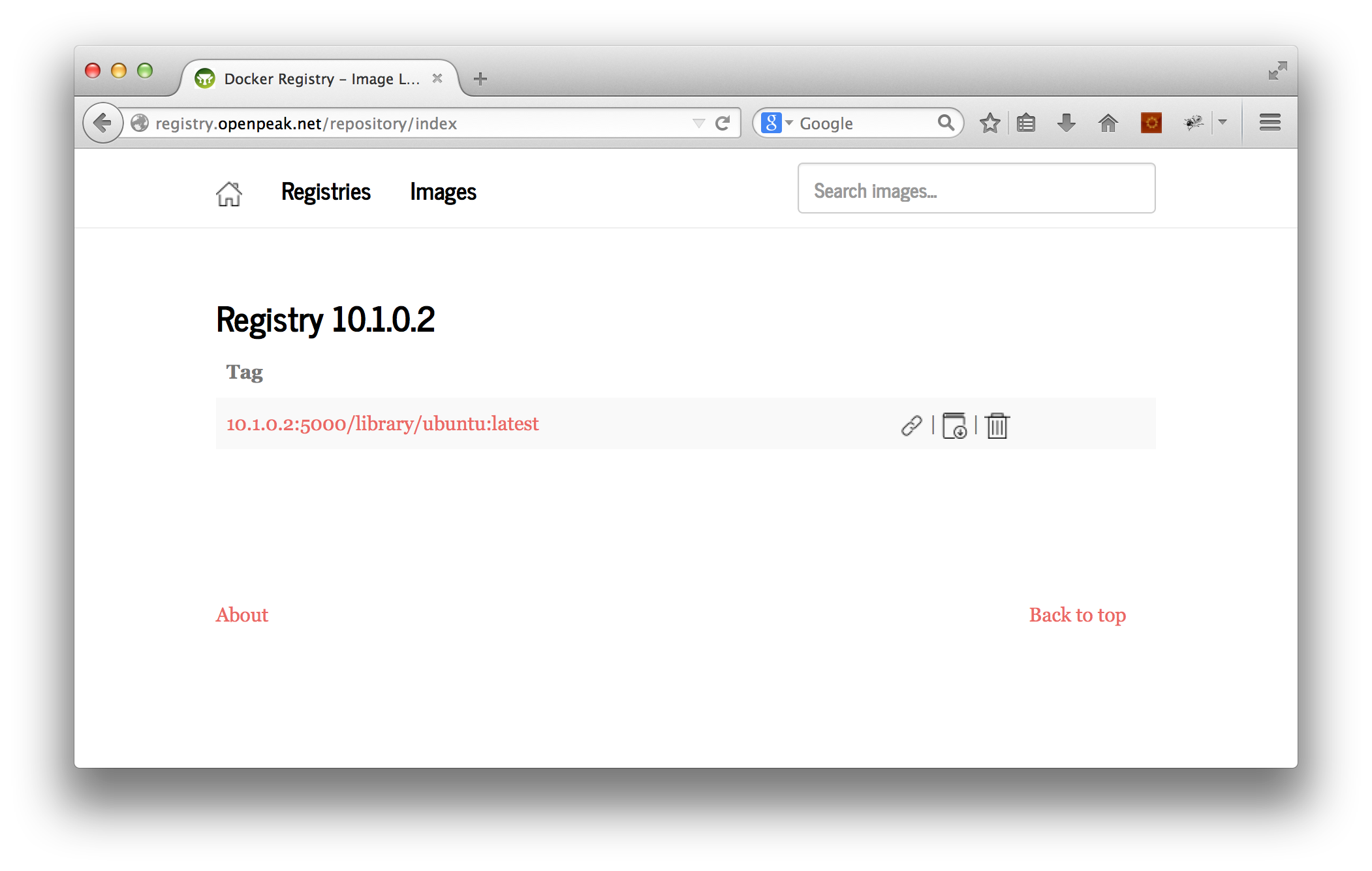
By default, the Registry communicates only directly to the Docker socket or can be managed via REST. If you want to have an easier time of browsing your images, install the docker-registry-web project:

$ docker run -p 8080:8080 -e REG1=http://<system hostname>:5000/v1/ atcol/docker-registry-ui

Keep in mind that it’s going to need to be able to talk to your Registry instance, so make sure the hostname that you’re giving it for the registry is resolvable from within the docker-registry-web container.

A screenshot:

Screen Shot 2014-10-12 at 2.36.19 PM

docker-registry-web is actually a Java application, but, again, it would be a poorly designed image if it was important for you to know that.

Lastly, when you’re done playing-around with your Registry instance, make sure to hide it behind an Nginx-proxy, and add authentication (mutual, HTTP, etc..).

Very Easy, Pleasant, Secure, and Python-Accessible Distributed Storage With Tahoe LAFS

Tahoe is a file-level distributed filesystem, and it’s a joy to use. “LAFS” stands for “Least Authority Filesystem”. According to the homepage:

Even if some of the servers fail or are taken over by an attacker, the 
entire filesystem continues to function correctly, preserving your privacy 
and security.

Tahoe comes built-in with a beautiful UI, and can be accessed via it’s CLI (using a syntax similar to SCP), via REST (that’s right), or from Python using pyFilesystem (an abstraction layer that also works with SFTP, S3, FTP, and many others). Tahoe It gives you very direct control over how files are sharded/replicated. The shards are referred to as shares.

Tahoe requires an “introducer” node that announces nodes. You can easily do a one-node cluster by installing the node in the default ~/.tahoe directory, the introducer in another directory, and dropping the “share” configurables down to 1.

Installing

Just install the package:

$ sudo apt-get install tahoe-lafs

You might also be able to install directly using pip (this is what the Apt version does):

$ sudo pip install allmydata-tahoe

Configuring as Client

  1. Provisioned client:
    $ tahoe create-client
    
  2. Update ~/.tahoe/tahoe.cfg:
    # Identify the local node.
    nickname = 
    
    # This is the furl for the public TestGrid.
    introducer.furl = pb://hckqqn4vq5ggzuukfztpuu4wykwefa6d@publictestgrid.e271.net:50213,198.186.193.74:50213/introducer
    
  3. Start node:
    $ bin/tahoe start
    

Web Interface (WUI):

The UI is available at http://127.0.0.1:3456.

To change the UI to bind on all ports, update web.port:

web.port = tcp:3456:interface=0.0.0.0

CLI Interface (CLI):

To start manipulating files with tahoe, we need an alias. Aliases are similar to anonymous buckets. When you create an alias, you create a bucket. If you misplace the alias (or the directory URI that it represents), you’re up the creek. It’s standard-operating-procedure to copy the private/aliases file (in your main Tahoe directory) between the various nodes of your cluster.

  1. Create an alias (bucket):
    $ tahoe create-alias tahoe
    

    We use “tahoe” since that’s the conventional default.

  2. Manipulate it:

    $ tahoe ls tahoe:
    $
    

The tahoe command is similar to scp, in that you pass the standard file management calls and use the standard “colon” syntax to interact with the remote resource.

If you’d like to view this alias/directory/bucket in the WUI, run “tahoe list-aliases” to dump your aliases:

# tahoe list-aliases
  tahoe: URI:DIR2:xyzxyzxyzxyzxyzxyzxyzxyz:abcabcabcabcabcabcabcabcabcabcabc

Then, take the whole URI string (“URI:DIR2:xyzxyzxyzxyzxyzxyzxyzxyz:abcabcabcabcabcabcabcabcabcabcabc”), plug it into the input field beneath “OPEN TAHOE-URI:”, and click “View file or Directory”.

Configuring as Peer (Client and Server)

First, an introducer has to be created to announce the nodes.

Creating the Introducer

$ mkdir tahoe_introducer
$ cd tahoe_introducer/
~/tahoe_introducer$ tahoe create-introducer .

Introducer created in '/home/dustin/tahoe_introducer'

$ ls -l
total 8
-rw-rw-r-- 1 dustin dustin 520 Sep 16 13:35 tahoe.cfg
-rw-rw-r-- 1 dustin dustin 311 Sep 16 13:35 tahoe-introducer.tac

# This is a introducer-specific tahoe.cfg . Set the nickname.
~/tahoe_introducer$ vim tahoe.cfg 

~/tahoe_introducer$ tahoe start .
STARTING '/home/dustin/tahoe_introducer'

~/tahoe_introducer$ cat private/introducer.furl 
pb://wa3mb3l72aj52zveokz3slunvmbjeyjl@192.168.10.108:58294,192.168.24.170:58294,127.0.0.1:58294/5orxjlz6e5x3rtzptselaovfs3c5rx4f

Configuring Client/Server Peer

  1. Create the node:
    $ tahoe create-node
    
  2. Update configuration (~/.tahoe/tahoe.cfg).
    • Set nickname and introducer.furl to the furl of the introducer, just above.
    • Set the shares config. We’ll only have one node for this example, so needed represents the number of pieces required to rebuild a file, happy represents the number of pieces/nodes required to perform a write, and total represents the number of pieces that get created:
      shares.needed = 1
      shares.happy = 1
      shares.total = 1
      

      You may also wish to set the web.port item as we did in the client section, above.

  3. Start the node:

    $ tahoe start
    STARTING '/home/dustin/.tahoe'
    
  4. Test a file-operation:
    $ tahoe create-alias tahoe
    Alias 'tahoe' created
    
    $ tahoe ls
    
    $ tahoe cp /etc/fstab tahoe:
    Success: files copied
    
    $ tahoe ls
    fstab
    

Accessing From Python

  1. Install the Python package:
    $ sudo pip install fs
    
  2. List the files:
    import fs.contrib.tahoelafs
    
    dir_uri = 'URI:DIR2:um3z3xblctnajmaskpxeqvf3my:fevj3z54toroth5eeh4koh5axktuplca6gfqvht26lb2232szjoq'
    webapi_url = 'http://yourserver:3456'
    
    t = fs.contrib.tahoelafs.TahoeLAFS(dir_uri, webapi=webapi_url)
    files = t.listdir()
    

    This will render a list of strings (filenames). If you don’t provide webapi, the local system and default port are assumed.

Troubleshooting

If the logo in the upper-lefthand corner of the UI doesn’t load, try doing the following, making whatever path adjustments are necessary in your environment:

$ cd /usr/lib/python2.7/dist-packages/allmydata/web/static
$ sudo mkdir img && cd img
$ sudo wget https://raw.githubusercontent.com/tahoe-lafs/tahoe-lafs/master/src/allmydata/web/static/img/logo.png
$ tahoe restart

This is a bug, where the image isn’t being included in the Python package:

logo.png is not found in allmydata-tahoe as installed via easy_install and pip

If you’re trying to do a copy and you get an AssertionError, this likely is a known bug in 1.10.0:

# tahoe cp tahoe:fake_data .
Traceback (most recent call last):
  File "/usr/lib/python2.7/dist-packages/allmydata/scripts/runner.py", line 156, in run
    rc = runner(sys.argv[1:], install_node_control=install_node_control)
  File "/usr/lib/python2.7/dist-packages/allmydata/scripts/runner.py", line 141, in runner
    rc = cli.dispatch[command](so)
  File "/usr/lib/python2.7/dist-packages/allmydata/scripts/cli.py", line 551, in cp
    rc = tahoe_cp.copy(options)
  File "/usr/lib/python2.7/dist-packages/allmydata/scripts/tahoe_cp.py", line 770, in copy
    return Copier().do_copy(options)
  File "/usr/lib/python2.7/dist-packages/allmydata/scripts/tahoe_cp.py", line 451, in do_copy
    status = self.try_copy()
  File "/usr/lib/python2.7/dist-packages/allmydata/scripts/tahoe_cp.py", line 512, in try_copy
    return self.copy_to_directory(sources, target)
  File "/usr/lib/python2.7/dist-packages/allmydata/scripts/tahoe_cp.py", line 672, in copy_to_directory
    self.copy_files_to_target(self.targetmap[target], target)
  File "/usr/lib/python2.7/dist-packages/allmydata/scripts/tahoe_cp.py", line 703, in copy_files_to_target
    self.copy_file_into(source, name, target)
  File "/usr/lib/python2.7/dist-packages/allmydata/scripts/tahoe_cp.py", line 748, in copy_file_into
    target.put_file(name, f)
  File "/usr/lib/python2.7/dist-packages/allmydata/scripts/tahoe_cp.py", line 156, in put_file
    precondition(isinstance(name, unicode), name)
  File "/usr/lib/python2.7/dist-packages/allmydata/util/assertutil.py", line 39, in precondition
    raise AssertionError, "".join(msgbuf)
AssertionError: precondition: 'fake_data' <type 'str'>

Try using a destination filename/filepath rather than just a dot.

See Inconsistent ‘tahoe cp’ behavior for more information.

DEFLATE Socket Compression in Python

Properly-working DEFLATE compression is elusive in Python. Thanks to wtolson, I’ve found such a solution.

This is an example framework for establishing the compression and decompression objects:

def activate_zlib():
    import zlib

    wbits = -zlib.MAX_WBITS

    compress = zlib.compressobj(level, zlib.DEFLATED, wbits)

    compressor = lambda x: compress.compress(x) + \
                            compress.flush(zlib.Z_SYNC_FLUSH)

    decompress = zlib.decompressobj(wbits)
    
    decompressor = lambda x: decompress.decompress(x) + \
                                decompress.flush()
    
    return (compressor, decompressor)

With this example, you’ll pass all of your outgoing data through the compressor, and all of your incoming data to the decompressor. As always, you’ll do a read-loop until you’ve decompressed the expected number of bytes.

A Compatible Way of Getting Package-Paths in Python

The Python community is always looking to improve things in the way of consistency, and that’s its best and worst feature because from time to time, one method isn’t finished before another method is begun.

For example, when it comes to something, like packaging, you may need to account for what you need in several different ways, such as identifying non-Python files in both the “package data” clauses of your setup attributes and listing them in a MANIFEST.in (one is considered only when building source distributions, and another is considered only when building binary distributions). However, in order to do this, you also have to embed the non-Python files within one of your actual source directories (the “package” directories), because the package-data files are made to belong to particular packages. We won’t even talk about the complexities of source and binary packages when packaging into a wheel. Such divergences are the topic of many entire series of articles.

With similar compatibility problems, in order to use one of the module loaders, for the purposes of reflection, the recommended package will vary depending on whether you’re running 2.x, 3.2/3.3, and 3.4 .

It’s a pain. For your convenience, this is such a flow, used to determine the path of the package:

_MODULE_NAME = 'module name'
_APP_PATH = None

# Works in 3.4

try:
    import importlib.util
    _ORIGIN = importlib.util.find_spec(_MODULE_NAME).origin
    _APP_PATH = os.path.abspath(os.path.dirname(_ORIGIN))
except:
    pass

# Works in 3.2

if _APP_PATH is None:
    try:
        import importlib
        _INITFILEPATH = importlib.find_loader(_MODULE_NAME).path
        _APP_PATH = os.path.abspath(os.path.dirname(_INITFILEPATH))
    except:
        pass

# Works in 2.x

if _APP_PATH is None:
    import imp
    _APP_PATH = imp.find_module(_MODULE_NAME)[1]

Generating Signatures with 25519 Curves in Python

It’s not very often that you need to do encryption in pure Python. Obviously, you’d want to have this functionality off-loaded to C-routines whenever possible. However, in some situations, often when you require code portability or that there not be any C-compilation phase, a pure-Python implementation can be convenient.

The 25519 elliptic curve is a special curve defined by Bernstein, rather than NIST. It is fairly well-embraced as an alternative to NIST-generated curves, which are assumed to be either influenced or compromised by the NSA. See Aris’ notable 25519-patch contribution to OpenSSH.

There exists a pure-Python implementation of 25519 at this site, but it’s too expensive to use in a high-volume platform (because of the math involved). However, it’s perfect if it’s to be driven by infrequent events, and a delay of a few seconds is fine. The benefits of an EC, if you don’t already know, is that the factors are usually considerably smaller for strength comparable to traditional, non-EC algorithms. Therefore, your trade-off for a couple of more seconds of computation is an enigmatically-shorter signature.

To use it, grab the Python source, included here for posterity:

import hashlib

b = 256
q = 2**255 - 19
l = 2**252 + 27742317777372353535851937790883648493

def H(m):
  return hashlib.sha512(m).digest()

def expmod(b,e,m):
  if e == 0: return 1
  t = expmod(b,e/2,m)**2 % m
  if e & 1: t = (t*b) % m
  return t

def inv(x):
  return expmod(x,q-2,q)

d = -121665 * inv(121666)
I = expmod(2,(q-1)/4,q)

def xrecover(y):
  xx = (y*y-1) * inv(d*y*y+1)
  x = expmod(xx,(q+3)/8,q)
  if (x*x - xx) % q != 0: x = (x*I) % q
  if x % 2 != 0: x = q-x
  return x

By = 4 * inv(5)
Bx = xrecover(By)
B = [Bx % q,By % q]

def edwards(P,Q):
  x1 = P[0]
  y1 = P[1]
  x2 = Q[0]
  y2 = Q[1]
  x3 = (x1*y2+x2*y1) * inv(1+d*x1*x2*y1*y2)
  y3 = (y1*y2+x1*x2) * inv(1-d*x1*x2*y1*y2)
  return [x3 % q,y3 % q]

def scalarmult(P,e):
  if e == 0: return [0,1]
  Q = scalarmult(P,e/2)
  Q = edwards(Q,Q)
  if e & 1: Q = edwards(Q,P)
  return Q

def encodeint(y):
  bits = [(y >> i) & 1 for i in range(b)]
  return ''.join([chr(sum([bits[i * 8 + j] << j for j in range(8)])) for i in range(b/8)])

def encodepoint(P):
  x = P[0]
  y = P[1]
  bits = [(y >> i) & 1 for i in range(b - 1)] + [x & 1]
  return ''.join([chr(sum([bits[i * 8 + j] << j for j in range(8)])) for i in range(b/8)])

def bit(h,i):
  return (ord(h[i/8]) >> (i%8)) & 1

def publickey(sk):
  h = H(sk)
  a = 2**(b-2) + sum(2**i * bit(h,i) for i in range(3,b-2))
  A = scalarmult(B,a)
  return encodepoint(A)

def Hint(m):
  h = H(m)
  return sum(2**i * bit(h,i) for i in range(2*b))

def signature(m,sk,pk):
  h = H(sk)
  a = 2**(b-2) + sum(2**i * bit(h,i) for i in range(3,b-2))
  r = Hint(''.join([h[i] for i in range(b/8,b/4)]) + m)
  R = scalarmult(B,r)
  S = (r + Hint(encodepoint(R) + pk + m) * a) % l
  return encodepoint(R) + encodeint(S)

def isoncurve(P):
  x = P[0]
  y = P[1]
  return (-x*x + y*y - 1 - d*x*x*y*y) % q == 0

def decodeint(s):
  return sum(2**i * bit(s,i) for i in range(0,b))

def decodepoint(s):
  y = sum(2**i * bit(s,i) for i in range(0,b-1))
  x = xrecover(y)
  if x & 1 != bit(s,b-1): x = q-x
  P = [x,y]
  if not isoncurve(P): raise Exception("decoding point that is not on curve")
  return P

def checkvalid(s,m,pk):
  if len(s) != b/4: raise Exception("signature length is wrong")
  if len(pk) != b/8: raise Exception("public-key length is wrong")
  R = decodepoint(s[0:b/8])
  A = decodepoint(pk)
  S = decodeint(s[b/8:b/4])
  h = Hint(encodepoint(R) + pk + m)
  if scalarmult(B,S) != edwards(R,scalarmult(A,h)):
    raise Exception("signature does not pass verification")

These routines are not Python 3 compatible.

For reference, other implementations in other languages can be found at the Wikipedia page, under “External links”.

To implement the Bernstein version above, you must first generate a signing (private) key. This comes from a random 32-bit number with some bits flipped:

import os

signing_key_bytes = [ord(os.urandom(1)) for i in range(32)]

signing_key_bytes[0] &= 248
signing_key_bytes[31] &= 127
signing_key_bytes[31] |= 64

signing_key = ''.join([chr(x) for x in signing_key_bytes])

To produce the signature, and then check it:

import ed25519

message = "some data"

public_key = ed25519.publickey(signing_key)

signature = ed25519.signature(message, signing_key, public_key)
ed25519.checkvalid(signature, message, public_key)

The signing and the ensuing check take about six-seconds, together.

The ed25519 module is the one whose source is displayed above. The name “Ed25519” (the official name of the algorithm) stands for “Edwards Curve”, the mathematical foundation on which Bernstein designed the 25519 curve.

Creating Those Neat OpenSSH RSA Public Keys in OpenSSL (along with DSA and ECDSA Keys)

Not too long ago, I wanted to know how to generate the public-keys that OpenSSH generates, as a transitional step to understanding how to decode them. In this fashion, I might apply the knowledge, some day, to a dynamically configurable SSH platform to allow a client to connect via SSH and to authenticate against a database, such as with Github and Bitbucket.

What I did not learn while painfully trolling and reverse-engineering all of the key-generation code for ssh-keygen was that this representation is described by PKCS8. Yes, more than a little time was unnecessarily wasted. In fact, you can generate PKCS8-formatted public keys with OpenSSL.

Needless to say, I never finished reverse-engineering the code. This wasn’t so much because it became a monster, but rather the code was unfathomably ugly. It would’ve taken an enormous amount of time to hack something together, and the same amount of time to refactor it into being something elegant. It required too much of a commitment for something without an immediate need. It would’ve been quicker (and funnier) to write a FUSE wrapper to read the database, and just point OpenSSH to the mountpoint.

Generating an RSA public-key and converting it to PKCS8:

$ openssl genrsa -out mykey.pem 2048
Generating RSA private key, 2048 bit long modulus
.................+++
.........................................................................+++
e is 65537 (0x10001)

$ openssl rsa -in mykey.pem -pubout | ssh-keygen -f /dev/stdin -i -m PKCS8
writing RSA key
ssh-rsa AAAAB3NzaC1yc2EAAAADAQABAAABAQCb7G51EdPBy8Np3x84DoWB5moC/ijLqDKr7ipvajNs6rICIEgX70D5S5jPAiC7HCcubHbxAEV3rRlQJpsKyiy85vKHL787IRhmHu9ILFRm+7OxYY783QCBNP+NcZJVFWsHASxm05hOB8Z4pC0d2ql/eajqUOvk83TdiJnJA3lg+3/LCTd6mfQAKybycllBZxE8W6FLXlpsva2J1hW3bxs5FcvsoqzVjboPmbXNuC0sKk5gWPq/Rrpc7E9N8bEPt/jk/CAUtUPxFtFMe48odHvXnb4YAkt2sTKHzH9BWgn4jSjPsjwYBiG2xWk0n5RcAi2GoPHCwveD2rArY+fQW8+5

The parameters to ssh-keygen simply indicate that the data is coming from STDIN, we’re doing an import, and the key-format is PKCS8.

Also, with DSA:

$ openssl dsaparam -out dsaparam.pem 2048
Generating DSA parameters, 2048 bit long prime
This could take some time
..............+.........+.................+...........+++++++++++++++++++++++++++++++++++++++++++++++++++*
.......+....+...........+......+...+................+.....+.....................+...+...................................+..........+....+..........+.........+..+.+...........+.....+..+......+.......+.....+........+.............+.....+.....+...+..+..............+++++++++++++++++++++++++++++++++++++++++++++++++++*

$ openssl gendsa dsaparam.pem -out dsa_priv.pem
Generating DSA key, 2048 bits

$ openssl dsa -in dsa_priv.pem -pubout | ssh-keygen -f /dev/stdin -i -m PKCS8
read DSA key
writing DSA key
ssh-dss AAAAB3NzaC1kc3MAAAEBAMq+cozwNedgZotyF85hu2yTtdm2EPQhZkSR3iC1qsidkO99HTt4Gpx5vrkdPs13D/RSJj7EJYwvsWSOI/OgY+OsqymR7Erqpf0NGdwzHpTz8nYe2oQNZgpaxh9iTMsfCQwdfchGT4QwewVf4fAGXRZRtmTSbNZIXOJMBiI9h6qW29DvI1TH/x4iWL3j1XA6NDGbVECYU4CE3bQUt/F3wuYTcy6JZU9JzbCLwO6lIkFQmVk4HyMODwM5YKectFh38a7r18oTosnewu9bKoiXCVmOK6RoEgiz/+Sqjxgi8GZ/LeJtLJGxPZxuUmRe8HGMprNW4VmaxoRkNgVL5LoyBNkAAAAVANmGyUL5j1iOp5ABkqKJuiq1sqEXAAABADzHG6NVAzVvZ8xFHc4G2gs56/HvkmvsyKyyQE5o1sV5Yp9yZq9LDW6egrCSRi1Ny6PeBCuSBPU1piZwObX7ZDJCvMvQZf55EONuZYVYBhYvV0Cxw0aet94Qz/u9RA9h1CKl7321d8SDWw4DDNAmQ7nS+NuS6bkAV9djpzK8WFh6PHjARF4DdefbjaYIVig8iWxxu3qju1iQQta2/XZ23OJxZb8eUE+Dgeq5Qdosb508VIRPByovRL3o9RbQ2y50Zp2OXmbib94nW1CpFzo/84RQfnP3RG2LPpmeK+KBTqbctj43B+ATvuIw5vHYj67o3P1MgOHvFpGnDt/McdUo1BoAAAEACqjSYFC9Zj5w5P2uMRhj+o9Gc7z3bYC/OphTcWhjZSs2OAF8+PGjpEjQYSpHPmbLhdbPsZpf2NAnAtz1WxCRVvOFeuSl9zdp4/JeRj3SKrxk0L/r5ZPGCkx+FdWV65sSwK8usaFHyKXeges1N8nmzTegphW3xVb4qI9OazanQ5sxqr+TzDa2yRAMK/PwW8mxyaYkofyct7uHOR0CD6/WjkYHHOEDzubPo1/nh2oKGC2eQnluNP8xBAg7Z5sqm6ZBSIWmOhpaOgIDNcwYla9gJJHrMecgbHkb6HuPcpaJvd2dCZpujFfB0+2jFUgPUsgygIMfV5mjUI3Zajmgmwtqiw==

I included DSA because generating a key-pair with DSA for general PKE is a bit more obscure. I don’t know why. It is still possible, however.

Lastly, ECDSA (elliptic-curve DSA), for completeness. This is really the one that you want to be using, if given a choice. See how cute/short the public-keys are for an algorithm with considerably-more strength? A 256-bit curve is equivalent to a traditional 3072-bit RSA key.

$ openssl ecparam -genkey -name prime256v1 -noout -out prime256v1.key.pem
$ openssl ec -in prime256v1.key.pem -pubout | ssh-keygen -f /dev/stdin -i -m PKCS8
read EC key
writing EC key
ecdsa-sha2-nistp256 AAAAE2VjZHNhLXNoYTItbmlzdHAyNTYAAAAIbmlzdHAyNTYAAABBBC3FrhznL2pQ/titzgnWrbznR3ve2eNEgevog/aS7SszS9Vkq0uFefavBF4M2Txc34sIQ5TPiZxYdm9uO1siXSw=

Fast, Multipart Downloads from S3

Using the “Range” header and greenlets, you can do very fast downloads from S3. The speed improvements are considerably higher than with uploads. With a 130M file, it was more than three-times faster to parallelize a download.

I’ve put the code in RandomUtility.

Usage:

$ python s3_parallel_download.py (access key) (secret key) (bucket name) (key name)
...
2014-06-23 11:45:06,896 - __main__ - DEBUG -  19%   6%  13%   6%   6%  13%  27%
2014-06-23 11:45:16,896 - __main__ - DEBUG -  52%  26%  26%  26%  39%  26%  68%
2014-06-23 11:45:26,897 - __main__ - DEBUG -  85%  32%  52%  39%  52%  45% 100%
2014-06-23 11:45:36,897 - __main__ - DEBUG - 100%  78%  78%  59%  65%  65% 100%
2014-06-23 11:45:46,897 - __main__ - DEBUG - 100% 100% 100%  78%  91%  91% 100%
Downloaded: /var/folders/qk/t5991kt11cb2y6qgmzrzm_g00000gp/T/tmpU7pL8I

Create a Service Catalog with consul.io

The requirement for service-discovery comes with the territory when you’re dealing with large farms containing multiple large components that might be themselves load-balanced clusters. Service discovery becomes a useful abstraction to map the specific designations and port numbers of the your services/load-balancers to nice, semantic names. The utility of this is being able to refer to things by semantic names instead of IP address, or even hostnames.

However, such a useful layer gets completely passed-over in medium-sized networks.

Here enters consul.io. It has a handful of useful characteristics, and it’s very easy to get started. I’ll cover the process here, and reiterate some of the examples from their homepage, below.

Overview

An instance of the Consul agent runs on every machine of the services that you want to publish. The instances of Consul form a Consul cluster. Each machine has a directory in which are stored “service definition” files for each service you wish to announce. You then hit either a REST endpoint or do a DNS query to render an IP. They’re especially proud of the DNS-compatible interface, and it provides for automatic caching.

Multiple machines can announce themselves for the same services, and they’ll all be enumerated in the result. In fact, Consul will use a load-balancing strategy similar to round-robin when it returns DNS answers.

consul.io-Specific Features

Generally speaking, service-discovery is a relatively simple concept to both understand and even implement. However, the following things are especially cool/interesting/fun:

  • You can assign a set of organizational tags to each service-definition (“laser” or “color” printer, “development” or “production” database). You can then query by either semantic name or tag.
  • It’s written in Go. That means that it’s inherently skilled at parallezing, it’s multiplatform, and you won’t have to worry about library dependencies (Go programs are statically linked).
  • It uses the RAFT consensus protocol. RAFT is the hottest thing going right now when it comes to strongly-consistent clusters (simple to understand and implement, and self-organizing).
  • You can access it via both DNS and HTTP.

Getting Started

We’re only going to do a quick reiteration of the more obvious/useful functionalities.

Configuring Agents

We’ll only be configuring one server (thus completely open to data loss).

  1. Set-up a Go build environment, and cd into $GOPATH.
  2. Clone the consul.io source:

    $ git clone git@github.com:hashicorp/consul.git src/github.com/hashicorp/consul
    Cloning into 'src/github.com/hashicorp/consul'...
    remote: Counting objects: 5701, done.
    remote: Compressing objects: 100% (1839/1839), done.
    remote: Total 5701 (delta 3989), reused 5433 (delta 3803)
    Receiving objects: 100% (5701/5701), 4.69 MiB | 1.18 MiB/s, done.
    Resolving deltas: 100% (3989/3989), done.
    Checking connectivity... done.
    
  3. Build it:

    $ cd src/github.com/hashicorp/consul
    $ make
    $ make
    --> Installing build dependencies
    github.com/armon/circbuf (download)
    github.com/armon/go-metrics (download)
    github.com/armon/gomdb (download)
    github.com/ugorji/go (download)
    github.com/hashicorp/memberlist (download)
    github.com/hashicorp/raft (download)
    github.com/hashicorp/raft-mdb (download)
    github.com/hashicorp/serf (download)
    github.com/inconshreveable/muxado (download)
    github.com/hashicorp/go-syslog (download)
    github.com/hashicorp/logutils (download)
    github.com/miekg/dns (download)
    github.com/mitchellh/cli (download)
    github.com/mitchellh/mapstructure (download)
    github.com/ryanuber/columnize (download)
    --> Running go fmt
    --> Installing dependencies to speed up builds...
    # github.com/armon/gomdb
    ../../armon/gomdb/mdb.c:8513:46: warning: data argument not used by format string [-Wformat-extra-args]
    /usr/include/secure/_stdio.h:47:56: note: expanded from macro 'sprintf'
    --> Building...
    github.com/hashicorp/consul
    
  4. Create a dummy service-definition as web.json in /etc/consul.d (the recommended path):

    {"service": {"name": "web", "tags": ["rails"], "port": 80}}
    
  5. Boot the agent and use a temporary directory for data:

    $ bin/consul agent -server -bootstrap -data-dir /tmp/consul -config-dir /etc/consul.d
    
  6. Querying Consul

    Receive a highly efficient but eventually-consistent list of agent/service nodes:

    $ bin/consul members
    dustinsilver.local  192.168.10.16:8301  alive  role=consul,dc=dc1,vsn=1,vsn_min=1,vsn_max=1,port=8300,bootstrap=1
    

    Get a complete list of current nodes:

    $ curl localhost:8500/v1/catalog/nodes
    [{"Node":"dustinsilver.local","Address":"192.168.10.16"}]
    

    Verify membership:

    $ dig @127.0.0.1 -p 8600 dustinsilver.local.node.consul
    
    ; <> DiG 9.8.3-P1 <> @127.0.0.1 -p 8600 dustinsilver.local.node.consul
    ; (1 server found)
    ;; global options: +cmd
    ;; Got answer:
    ;; ->>HEADER<<- opcode: QUERY, status: NOERROR, id: 46780
    ;; flags: qr aa rd; QUERY: 1, ANSWER: 1, AUTHORITY: 0, ADDITIONAL: 0
    ;; WARNING: recursion requested but not available
    
    ;; QUESTION SECTION:
    ;dustinsilver.local.node.consul.	IN	A
    
    ;; ANSWER SECTION:
    dustinsilver.local.node.consul.	0 IN	A	192.168.10.16
    
    ;; Query time: 0 msec
    ;; SERVER: 127.0.0.1#8600(127.0.0.1)
    ;; WHEN: Sun May 25 03:17:49 2014
    ;; MSG SIZE  rcvd: 94
    

    Pull an IP for the service named “web” using DNS (they’ll always have the “service.consul” suffix):

    $ dig @127.0.0.1 -p 8600 web.service.consul
    
    ; <> DiG 9.8.3-P1 <> @127.0.0.1 -p 8600 web.service.consul
    ; (1 server found)
    ;; global options: +cmd
    ;; Got answer:
    ;; ->>HEADER<<- opcode: QUERY, status: NOERROR, id: 42343
    ;; flags: qr aa rd; QUERY: 1, ANSWER: 1, AUTHORITY: 0, ADDITIONAL: 0
    ;; WARNING: recursion requested but not available
    
    ;; QUESTION SECTION:
    ;web.service.consul.		IN	A
    
    ;; ANSWER SECTION:
    web.service.consul.	0	IN	A	192.168.10.16
    
    ;; Query time: 1 msec
    ;; SERVER: 127.0.0.1#8600(127.0.0.1)
    ;; WHEN: Sun May 25 03:20:33 2014
    ;; MSG SIZE  rcvd: 70
    

    or, HTTP:

    $ curl http://localhost:8500/v1/catalog/service/web
    [{"Node":"dustinsilver.local","Address":"192.168.10.16","ServiceID":"web","ServiceName":"web","ServiceTags":["rails"],"ServicePort":80}]
    

    Get the port-number, too, using DNS:

    $ dig @127.0.0.1 -p 8600 web.service.consul SRV
    
    ; <> DiG 9.8.3-P1 <> @127.0.0.1 -p 8600 web.service.consul SRV
    ; (1 server found)
    ;; global options: +cmd
    ;; Got answer:
    ;; ->>HEADER<<- opcode: QUERY, status: NOERROR, id: 44722
    ;; flags: qr aa rd; QUERY: 1, ANSWER: 1, AUTHORITY: 0, ADDITIONAL: 1
    ;; WARNING: recursion requested but not available
    
    ;; QUESTION SECTION:
    ;web.service.consul.		IN	SRV
    
    ;; ANSWER SECTION:
    web.service.consul.	0	IN	SRV	1 1 80 dustinsilver.local.node.dc1.consul.
    
    ;; ADDITIONAL SECTION:
    dustinsilver.local.node.dc1.consul. 0 IN A	192.168.10.16
    
    ;; Query time: 0 msec
    ;; SERVER: 127.0.0.1#8600(127.0.0.1)
    ;; WHEN: Sun May 25 03:21:00 2014
    ;; MSG SIZE  rcvd: 158
    

    Search by tag:

    $ dig @127.0.0.1 -p 8600 rails.web.service.consul
    
    ; <> DiG 9.8.3-P1 <> @127.0.0.1 -p 8600 rails.web.service.consul
    ; (1 server found)
    ;; global options: +cmd
    ;; Got answer:
    ;; ->>HEADER<<- opcode: QUERY, status: NOERROR, id: 16867
    ;; flags: qr aa rd; QUERY: 1, ANSWER: 1, AUTHORITY: 0, ADDITIONAL: 0
    ;; WARNING: recursion requested but not available
    
    ;; QUESTION SECTION:
    ;rails.web.service.consul.	IN	A
    
    ;; ANSWER SECTION:
    rails.web.service.consul. 0	IN	A	192.168.10.16
    
    ;; Query time: 0 msec
    ;; SERVER: 127.0.0.1#8600(127.0.0.1)
    ;; WHEN: Sun May 25 03:21:26 2014
    ;; MSG SIZE  rcvd: 82
    

Lightweight, Live Video in a Webpage with GStreamer and WebRTC

WebRTC is the hottest thing going right now, and allows you to receive live, secure video over RTP right to the browser. It’s videoconferencing without the need for any plugins or software (other than your browser). Better yet, as long as your audio/video is encoded correctly, it doesn’t have to be another person, but a song or movie in your own, private on-demand service.

Currently, Firefox, Chrome, and Opera are the browsers that support this. Unfortunately, you’ll have to shelf your love for Microsoft (who naturally vied for their own, alternative standard), for now.

There are a few different layers and components that are required in order for a developer to take advantage of this, however. This includes an ICE server (which wraps one or more STUN or TURN servers), a data connection to your webserver, whether it’s Ajax, WebSockets, SSE, or something else, properly encoded video (exclusively using Google’s VP8 codec), and properly encoded audio (e.g. Opus)… All of which is encrypted as SRTP (secure RTP).

Any time spent understanding this would be well-worth it for a lot of engineers. If you want to get started, the top five or six books in Amazon’s results (as of this time) are enjoyable reads. Currently, the most authoritative reference is “WebRTC: APIs and RTCWEB Protocols of the HTML5 Real-Time Web“, which is written by two participants of the relevant W3C/IETF working groups.

However, if you decide that you want an easy-as-pie solution and no challenge whatsoever, try out the Janus WebRTC Gateway.

Janus

Janus is a C-based RTP bridge for WebRTC. The following are the components that you’ll need to implement:

  • RTP generator
  • Janus server
  • Webpage that displays the video using Janus’ relatively-simple javascript library
  • STUN/TURN server (this is optional during development, and there’s a default one configured).

For our example, we’ll do exactly what they’ve already provided the groundwork for:

  • Use the provided script to invoke GStreamer 1.0 to generate an audio and video test-pattern, encode it to RTP-wrapped VP8-encoded video and Opus-encoded audio, and send it via UDP to the IP/port that the Janus server will be listening to.
  • Use the default config and certificates provided in the Janus source-code to retransmit the RTP data as a WebRTC peer.
  • Use the provided test-webpage to engage the Janus server using the Janus Javascript library.

Yeah. It’s that simple.

Build

We’re using Ubuntu 14.04 LTS.

  1. Install the dependencies:
    $ sudo apt-get install libmicrohttpd-dev libjansson-dev libnice-dev \
        libssl-dev libsrtp-dev libsofia-sip-ua-dev libglib2.0-dev \
        libopus-dev libogg-dev libini-config-dev libcollection-dev \
        pkg-config gengetopt
    
  2. Clone the project:
    $ git clone git@github.com:meetecho/janus-gateway.git
    Cloning into 'janus-gateway'...
    remote: Reusing existing pack: 394, done.
    remote: Counting objects: 14, done.
    remote: Compressing objects: 100% (14/14), done.
    remote: Total 408 (delta 5), reused 0 (delta 0)
    Receiving objects: 100% (408/408), 733.31 KiB | 628.00 KiB/s, done.
    Resolving deltas: 100% (268/268), done.
    Checking connectivity... done.
    
  3. Build the project:
    $ cd janus-gateway
    $ ./install.sh
    

    This will display the help for the janus command upon success.

  4. Start GStreamer:
    $ cd plugins/streams/
    $ ./test_gstreamer_1.sh 
    Setting pipeline to PAUSED ...
    Pipeline is PREROLLING ...
    Redistribute latency...
    Redistribute latency...
    Pipeline is PREROLLED ...
    Setting pipeline to PLAYING ...
    New clock: GstSystemClock
    
  5. In another window, run the Janus command without any parameters. This will use the default janus.cfg config.
    $ ./janus
    
  6. Either point your webserver to the html/ directory, or dump its contents into an existing web-accessible directory.
  7. Use the webpage you just hooked-up to see the video:
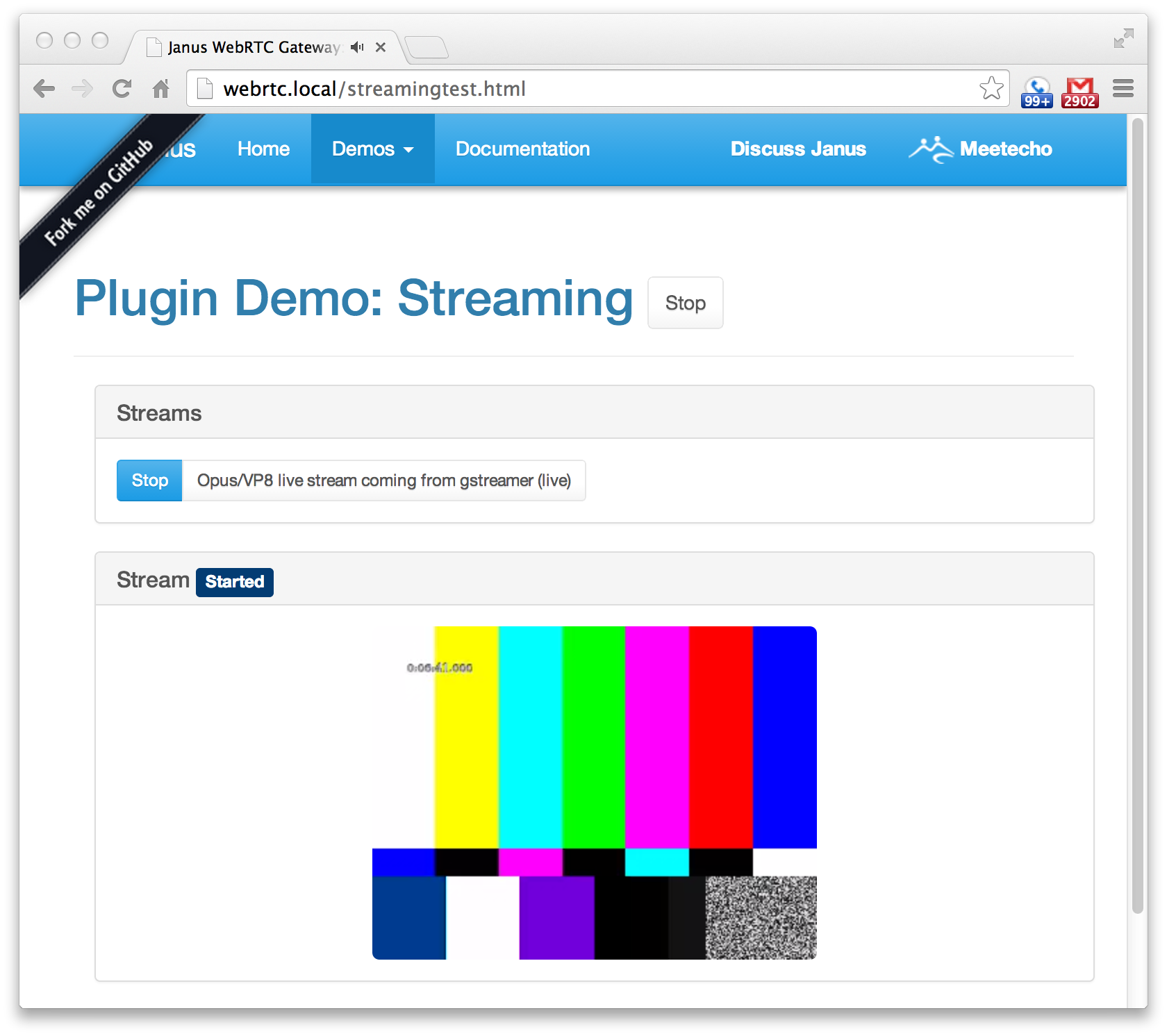
    1. Click on the “Demos” menu at the top of the page.
    2. Select the “Streaming” item.
    3. Click on the “Start” button (to the right of the title).
    4. Under the “Streams list” selector, select “Opus/VP8 live stream coming from gstreamer (live)”.
    5. Click the “Watch or Listen” button.
    6. Watch in wonderment.
      Janus WebRTC Gateway Screenshot

The possibilities are endless with the presentational simplicity of WebRTC, and a simple means by which to harness it.